


A command-line system information utility for Windows



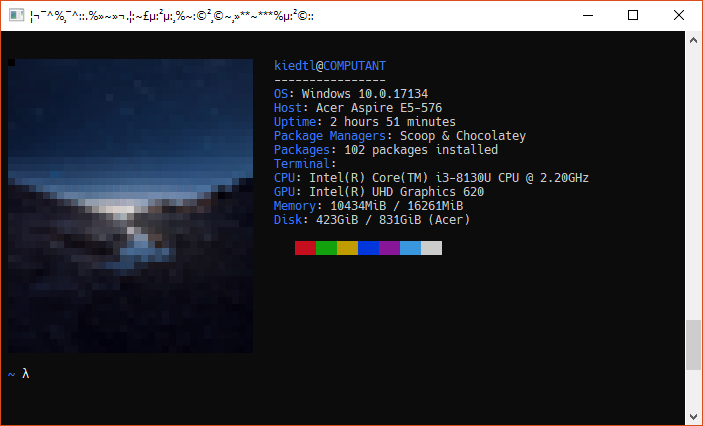
WinFetch is a command-line system information utility written in PowerShell 6+ for Windows. WinFetch displays information about your operating system, software and hardware in an way similar to Neofetch and Screenfetch.
WinFetch curently supports Windows 10; Windows 7 and Windows 8 have not yet been tested. It is highly recommended to use WinFetch with PowerShell 6+; errors may appear if any other version is used.
While WinFetch does work in the majority of cases, things may break occasionally. Please report all such bugs here.
Features
Why you should use WinFetch:
- You don't have any other choices.
- WinFetch is tiny. The whole thing is ~11KB and 320 lines of pure PowerShell, counting comments. Compare that to Neofetch, which is about 280KB and 7,500 lines of code.
- No need for the WSL, Cygwin, or MSYS2. While you need to install the WSL (Windows Subsystem for Linux) to run Neofetch, all you need to use WinFetch is PowerShell 6 (or later), which you probably already have installed.
Installation
Install WinFetch with Scoop:
- Make sure that you have the
extrasbucket installed:$ scoop bucket list main java ... extras - Install the
winfetchpackage:You should output like this:$ scoop install winfetchInstalling 'winfetch' (1.0.0) [64bit] Loading v1.0.0 from cache Checking hash of v1.0.0 ... ok. Extracting dl.7z ... done. Linking ~\scoop\apps\winfetch\current => ~\scoop\apps\winfetch\1.0.0 Creating shim for 'winfetch'. 'winfetch' (1.0.0) was installed successfully!
Usage
For basic usage, just run winfetch:
$ winfetch

                    ....,,:;+ccllll   billg@MSDOS4
      ...,,+:;  cllllllllllllllllll   ------------
,cclllllllllll  lllllllllllllllllll   OS: Windows 10.0.17134
llllllllllllll  lllllllllllllllllll   Host: Blah Blaspire 2-12-1-8 BLA-HBLA
llllllllllllll  lllllllllllllllllll   Package Managers: Scoop & Chocolatey
llllllllllllll  lllllllllllllllllll   Packages: 512 pkgs of bloat installed
llllllllllllll  lllllllllllllllllll   Uptime: 30 days 7 hours 2 minutes
                                      CPU: Intel(R) Core(TM) i2-8130U CPU @ 2048GHz
llllllllllllll  lllllllllllllllllll   GPU: Intel(R) UHD Graphics 620
llllllllllllll  lllllllllllllllllll   Memory: 1024KiB / 16384KiB
llllllllllllll  lllllllllllllllllll   Disk: 128MiB / 1024MiB (Windows)
llllllllllllll  lllllllllllllllllll
llllllllllllll  lllllllllllllllllll
`'ccllllllllll  lllllllllllllllllll
      `' \\*::  :ccllllllllllllllll
                       ````''*::cll
                                 ``
DISCLAIMER: the true output of Winfetch looks nothing like the above.
Configuration
As of version v1.0.0, WinFetch supports custom configuration. Configuration is stored at $env:XDG_CONFIG_HOME/winfetch/config (or ~/.config/winfetch/config).
To generate a default configuration that you can build on, just run:
winfetch -genconf
The default configuration looks like this:
# ===== WINFETCH CONFIGURATION =====

# Add a '#' to any of the lines in
# this file to enable their output.

# $show_os                  = $false
# $show_computer            = $false
# $show_uptime              = $false
# $show_cpu                 = $false
# $show_gpu                 = $false
# $show_memory              = $false
# $show_disk                = $false
# $show_pkgs                = $false

$show_pwsh                = $false
$show_pkgmngr             = $false
To disable an information field, just remove the # from that line:
$show_os = $false			# DISABLED
# $show_os = $false			# ENABLED!